
What you need to connect Discord to PlanVortex
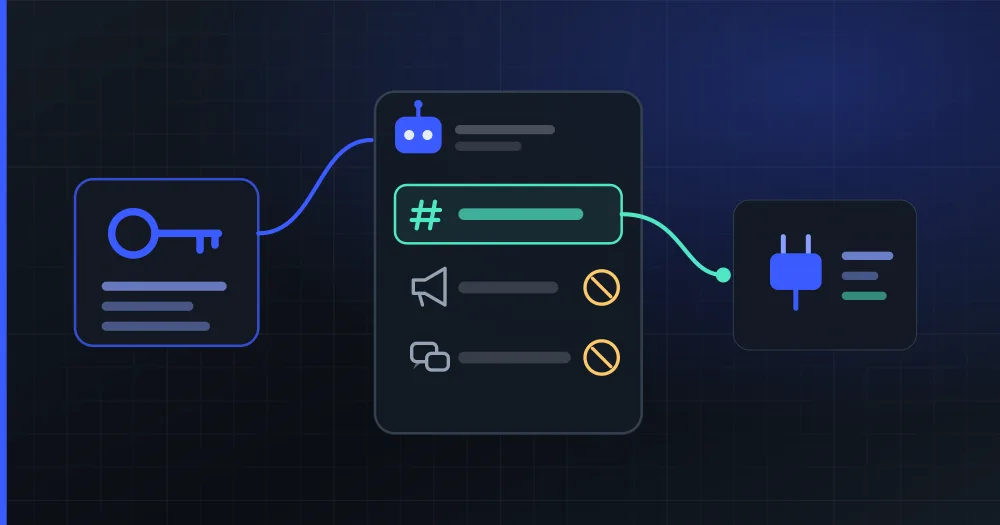
To connect Discord to PlanVortex you need three things: your own Discord application, the Manage Server permission on the server you will post to, and a text channel. You create the application once, for free, in the Discord Developer Portal, and paste its credentials into PlanVortex. You pick the server and the channel later, on Discord's screen, when you connect.
What do I need to connect Discord to PlanVortex?
| What you need | Where you get it |
|---|---|
| Your own Discord application, with the PlanVortex redirect URL registered | In the Discord Developer Portal, once |
| The Manage Server permission on the server you will post to | Whoever created the server has it; if the server is not yours, whoever manages it can give it to you |
| A text channel | You pick it on Discord's screen when you connect |
Each channel you connect takes up one account on your plan. To post to two channels, you connect both, with the same application.
Why does Discord ask for this?
Your own application is something we ask for, because of a Discord rule. To read the text of comments, an application needs the permission Discord calls Message Content Intent, and Discord reviews it per application. Since June 10, 2026, an application that reaches fewer than 10,000 users turns it on with a toggle; above that, it has to apply for it and reapply every year. If every PlanVortex customer shared one application, one customer's large community would put all of them through that review. With the application in your name, only your community counts.
The Manage Server permission is Discord's requirement. Connecting a channel adds a bot from your application to the server, and Discord only lets people with that permission on the server do that. That is why, on its screen, the server list only shows the servers where you have it.
The text channel is our part: PlanVortex posts to text channels, and forum and announcement channels work differently (in a forum, for example, every message opens its own thread).
How to check whether you already have it
- If PlanVortex says Set up under Configuration → Discord, with your application's name next to it, you already have the application.
- If you created the server, you have the permission, because whoever creates a server has all of them. If not, ask whoever manages it. You can also tell when you connect: if your server does not show up in the list on Discord's screen, you are missing it.
- In Discord's channel list, text channels have a hash sign (#) in front. Announcement channels have a megaphone and forum channels, speech bubbles.
Step by step
Create the Discord application
You do this once and it works for every channel you connect. It takes about ten minutes in the Discord Developer Portal:
- Log in with your Discord account and click New Application. Give it your brand's name, which is the one people will see when they authorize the connection, accept the terms and click Create.
- In OAuth2, copy the Client ID. Then click Reset Secret and copy the Client Secret, which Discord only shows once.
- On that same page, under Redirects, add the PlanVortex redirect URL exactly as it is, with no extra slash:
https://app.planvortex.com/connect/discord. PlanVortex shows it ready to copy in Configuration → Discord. Save your changes. - In Bot, click Reset Token and copy the bot token. It is also shown only once.
- On that page, leave Public Bot on and Requires OAuth2 Code Grant off. Further down, under Privileged Gateway Intents, turn on Message Content Intent. Save your changes.
Paste the credentials into PlanVortex
- In PlanVortex, go to Configuration → Discord. You need permission to edit the organization; if you do not have it, ask whoever manages it.
- Paste the Client ID, the Client Secret and the bot token, and click Save.
- Before saving, PlanVortex checks with Discord that the token belongs to that application, that Public Bot and Requires OAuth2 Code Grant are set the right way and that the redirect URL is registered. If something is off, it tells you what.
Connect a channel
- Go to Accounts, click Connect and choose Discord.
- The first time, PlanVortex reminds you what Discord asks for. Tick the box and click Connect Discord.
- Discord's screen shows your application's name, not PlanVortex. Pick the server (only the ones where you have Manage Server show up) and the text channel you will post to.
- Discord shows you the permissions the bot asks for. Leave them all ticked and authorize.
- Back in PlanVortex, tick the channel and click Add.
What happens if something is missing
- Without an application, Discord shows up on the Connect screen with the label "Needs your app". When you click it, PlanVortex explains what is needed and takes you to Configuration → Discord.
- If the redirect URL is missing, when you save the credentials you will see "Your Discord application does not have the PlanVortex redirect URL registered" (error 2700), with the missing URL. Add it under OAuth2 → Redirects, save there and save again in PlanVortex.
- With Public Bot off, Requires OAuth2 Code Grant on, or a token copied wrong, saving shows "The Discord bot is not responding" (error 958). Go back over steps 4 and 5 of the application.
- Without the Manage Server permission, your server does not show up in the list on Discord's screen. Ask whoever manages the server for the permission.
- If you pick a forum or announcement channel, back in PlanVortex you will see "That Discord channel is not a text channel" (error 2701), with a link to this guide. Connect again and pick a text channel.
- Without Message Content Intent, the channel connects and posts, but comments would come in empty. PlanVortex notices when it reads them and warns you with error 958; turn it on under Bot → Privileged Gateway Intents.
If what you want is to build Discord into your own tool through the API, the guide How to post to Discord through the API covers the webhook, the bot and each permission it asks for.
Sources
- Application Resource, Discord Developer Documentation. Accessed October 29, 2026.
- OAuth2, Discord Developer Documentation. Accessed October 29, 2026.
- Getting Started with Privileged Intent Review, Discord Developer Documentation. Accessed October 29, 2026.
- Channel Resource, Discord Developer Documentation. Accessed October 29, 2026.
- Welcome to the New Era of Discord Apps, Discord blog, May 24, 2022. Accessed October 29, 2026.
Why do I have to create the Discord application myself?
Because Discord reviews, per application, the permission to read the text of messages (Message Content Intent), which is the one that brings in comments. Since June 10, 2026, an application that reaches fewer than 10,000 users turns it on with a toggle, and above that it has to apply for it and reapply every year. With a shared application, one customer's large community would put every other customer through that review. With your own, only your community counts.
Does creating the application cost anything?
No. Creating an application in the Discord Developer Portal is free, and while it reaches fewer than 10,000 users the permission for comments turns on without asking anyone.
Can I connect several channels or several servers?
Yes, with the same application. Each channel is one account on your plan and is connected separately: connect again and pick another channel, or another server where you have the Manage Server permission.
What happens if someone removes the bot from the server?
Posts keep going out, because PlanVortex posts with the webhook Discord creates in the channel when you connect it, not with the bot. What stops working is comments and stats, which are read with the bot. To get them back, connect the channel again.
Can I take permissions away from the bot on the Discord screen?
Better not. The bot asks for just what it needs to post, read the thread under each post and reply in it, and every permission is there for something: without Read Message History comments come in empty, and without Manage Messages you cannot delete someone else's comment.