
Which WhatsApp number you can connect to PlanVortex
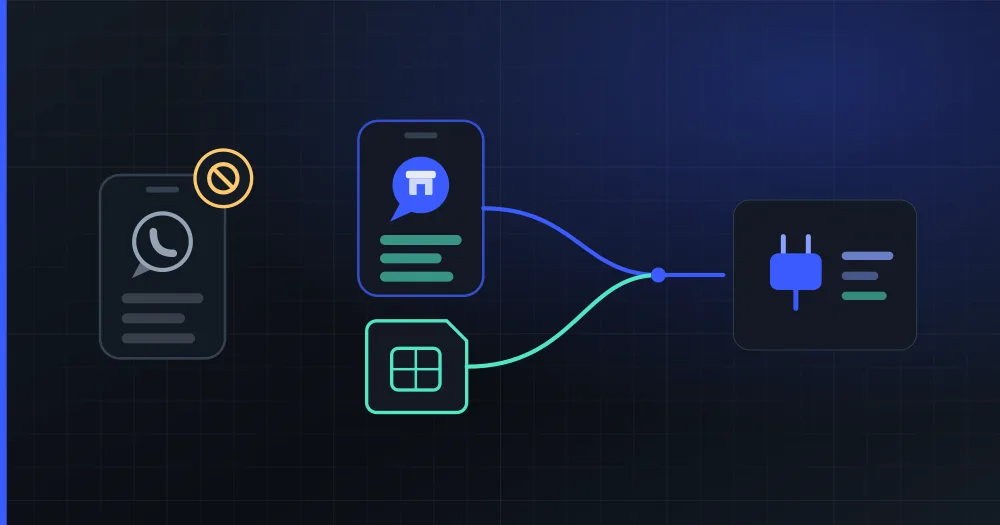
To connect WhatsApp to PlanVortex you need a number that Meta allows on its business platform: the one you already use in the WhatsApp Business app, or one that is not on WhatsApp. A number on regular WhatsApp does not work as it is. You move it to the WhatsApp Business app first, which brings your chats along, and then connect it. To sign in to Meta's window you also need a Facebook or Meta Business Suite account.
What do I need to connect WhatsApp to PlanVortex?
A Facebook or Meta Business Suite account, because the sign-up window belongs to Meta and the first thing it asks is to log in with one of them. You do not need a business portfolio beforehand: the same window lets you pick one or create it.
And a number that qualifies:
| The number you have | Can it be connected to PlanVortex? |
|---|---|
| A number in the WhatsApp Business app | Yes, and you keep using the app on your phone |
| A number that is not on WhatsApp | Yes, if it can receive an SMS or a phone call |
| A number on regular WhatsApp | No, until you move it to the WhatsApp Business app |
Each number takes one account of your plan.
Why does WhatsApp ask for a number like this?
Because Meta does not let the same number work on regular WhatsApp and on its business platform, which is what PlanVortex uses to send and receive messages. Its documentation says it plainly: a number registered on the platform cannot be used with WhatsApp Messenger (Meta's name for regular WhatsApp), and a number that is already on WhatsApp cannot be registered unless that account is deleted first.
The WhatsApp Business app is the exception. Meta lets an app number connect to the platform through a provider that supports it, and PlanVortex does: the number works in both places and you keep your history. Meta calls it coexistence and requires version 2.24.17 of the app or later.
How do I know which number I have?
Check which app you use that number with on your phone. WhatsApp and WhatsApp Business are two different apps, each with its own icon, and WhatsApp does not let the same number be used in both at once.
- If you use it in WhatsApp Business, you already have it. Update the app from Google Play or the App Store before connecting, so you have the version Meta requires.
- If you use it on regular WhatsApp, move it to WhatsApp Business first with the steps below.
- If it is in neither, it connects as a new number. Meta recommends a mobile number; with a landline, the verification code arrives more reliably by phone call than by SMS.
Step by step
If your number is on regular WhatsApp, move it to WhatsApp Business
Before you start, save your contacts to your phone's address book. WhatsApp Business does not support contacts saved only in WhatsApp yet, and switching apps would lose them. In WhatsApp's settings you can choose to save them all to the address book.
Then, as the WhatsApp Help Center explains for Android and iPhone:
- Back up your chats.
- Update WhatsApp and download the WhatsApp Business app from Google Play or the App Store.
- Open WhatsApp Business, read the terms and tap Agree and continue.
- The app recognizes the number you use on WhatsApp. Tap the option with your number.
- Verify the number with the six-digit code you get by SMS and grant the permissions the app asks for. On Android, one of them is access to your chat history and media, which is what brings your conversations over to WhatsApp Business.
- Create your business profile and tap Next.
You can also delete the WhatsApp account on that number and connect it as a new number, but Meta warns that this loses your message history. Moving it to WhatsApp Business keeps it.
Connect the number from PlanVortex
- In PlanVortex, go to Accounts and click Connect.
- Choose WhatsApp. A Meta window opens (if your browser blocks it, allow pop-ups for PlanVortex and try again). Log in with your Facebook or Meta Business Suite account.
- Enter your number. Meta is changing this window so it asks for the number first; if it asks about your business first, the number comes later.
- If the number is in the WhatsApp Business app, Meta recognizes it and shows you the app's profile (photo, name and category) so you can confirm it is that account. Pick or create the business portfolio and confirm the connection from the WhatsApp Business app on your phone by scanning the QR code Meta shows you (Meta also sends you a WhatsApp message with the link). At the end you choose the time zone and accept the terms.
- If it is a new number, choose whether you want the verification code by SMS or by phone call and enter it. Then pick or create the portfolio and the WhatsApp account, and type the display name, which is what your customers will see instead of the number.
- Back in PlanVortex, tick the number and click Add.
What happens if your number does not qualify?
With a regular WhatsApp number, Meta's window does not let you continue with that number. Move it to WhatsApp Business and connect again.
If you close the window before finishing, nothing is connected and you stay on the Connect screen.
If the window finishes without sharing any number with PlanVortex, when you come back you will see the notice "We couldn't find any WhatsApp number in what you shared with PlanVortex" (error 715), with a link to this guide. Connect again from the start with a number that qualifies.
Sources
- Onboard WhatsApp Business app users (Coexistence), Meta for Developers. Accessed October 27, 2026.
- Embedded Signup: Cloud API flow, Meta for Developers. Accessed October 27, 2026.
- Embedded Signup: overview, Meta for Developers. Accessed October 27, 2026.
- Business phone numbers, Meta for Developers. Accessed October 27, 2026.
- Migrate an existing WhatsApp number to a business account, Meta for Developers. Accessed October 27, 2026.
- Pricing on the WhatsApp Business Platform, Meta for Developers. Accessed October 27, 2026.
- How to add a credit card to your Messaging account, Meta Business Help Center. Accessed October 27, 2026.
- About moving between WhatsApp Messenger and the WhatsApp Business app, WhatsApp Help Center. Accessed October 27, 2026.
- How to move your WhatsApp Messenger account to the WhatsApp Business app, WhatsApp Help Center. Accessed October 27, 2026.
Can I keep using the WhatsApp Business app after connecting the number?
Yes. Meta calls it coexistence: you keep chatting from the app on your phone and the same number works with the business platform at the same time. What you send from the app is still free. Some app features change when you connect it, and they are in the next question.
What stops working in the WhatsApp Business app when I connect it?
According to Meta, broadcast lists (the ones you had become read-only and you cannot create new ones) and, in one-to-one chats, disappearing messages, view once messages and live location. Linked devices are unlinked when you connect and you can link them again, except WhatsApp for Windows and for Wear OS, which are not supported. Groups stay in the app, but they do not move to the platform.
Do I need to add a card to connect WhatsApp?
Not to connect. Meta charges per message for what is sent from its business platform, and it bills your Meta messaging account. Templates (marketing, utility and authentication messages) need a payment method. Replies to your customers are free up to 1,000 a month per number, and since October 1, 2026, without a payment method Meta stops delivering them once you go past that. You add the card in Meta Business Suite, under Settings, Billing & payments, Messaging accounts.
Can the number get disconnected on its own?
Yes. Meta disconnects it from the platform if the phone with the WhatsApp Business app has no activity for about 14 days, if you change your number, if you register it on regular WhatsApp or if you register it again on another phone. In any of those cases, connect WhatsApp again from PlanVortex.
Can I connect a landline?
Yes, if it is not on WhatsApp. When you verify it, ask Meta to send the code by phone call, because Meta does not recommend SMS for a landline. Short codes do not work.