
What access to a Facebook Page you need to connect it to PlanVortex
To connect Facebook to PlanVortex you need a Facebook Page, not a personal profile, and your account has to have access to that Page. Partial control is enough: you do not need to have created it or to have full control. Meta requires it, because its API only publishes to Pages and only gives access to a Page to someone who can manage it.
What do I need to connect Facebook to PlanVortex?
A Facebook Page on which your account has one of these kinds of access:
| What you have | Can it connect to PlanVortex? |
|---|---|
| A personal profile, with or without professional mode | No |
| A Page with Facebook access and full control | Yes |
| A Page with Facebook access and partial control | Yes |
| A Page with task access | Yes, if it includes Content, Messages and Community Activity, and Insights |
One authorization can connect several Pages. PlanVortex shows you every Page you gave it access to on Meta's screen, and you choose which ones to add. Each Page takes one account of your plan.
Why does Facebook require a Page?
Because Meta's API only publishes to Pages. On April 24, 2018 Meta removed publish_actions, the permission an app used to publish to a person's profile, and the current reference of its API confirms that you cannot create posts on a user's feed. Pages exist so that businesses, brands, organizations and public figures can publish, and they are the only thing a tool can publish to on your behalf.
The access rule is Meta's too: it only hands an app a Page's credentials if the person authorizing owns the Page or can perform tasks on it. Each thing PlanVortex does needs its own task (creating content to publish, messaging to reply on Messenger, moderating for comments and analyzing for insights), and partial control includes all of them.
How do I know what access I have to my Page?
From Facebook on a computer, as the Facebook Help Center explains:
Click your profile photo in the top right.
Click See all profiles, then select the Page.
Click your Page's profile picture in the top right to go to your Page.
Click Settings & privacy, then click Settings.
Click Page setup, then click Page access.
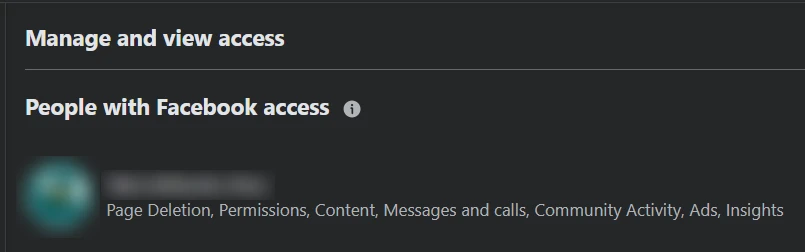
Screenshot from October 27, 2026
Under People with Facebook access, next to your name, Facebook lists what you can do on the Page. For PlanVortex, what counts is Content, Messages and calls, Community Activity and Insights. Page Deletion and Permissions come with full control, which PlanVortex does not need.
If the Page does not appear under See all profiles, you do not have Facebook access to it. You may have task access, which is used from Meta Business Suite, or none at all.
How to get access and connect the Page, step by step
If you do not have a Page, create one. Anyone with a Facebook account can, and whoever creates it has full control:
- On Facebook, click Pages on the left, then Create Page.
- Select Public Page, click Next, then click Get Started.
- Add the Page name and category and click Create Page.
- Follow the remaining steps (information, photos, WhatsApp, which you can skip, and notifications) until Done.
If the Page belongs to someone else (your client, your company), ask them for access. It has to come from someone with full control, from Page setup, under Page access, with Add new next to People with Facebook access. Facebook access with partial control is enough, and it is the careful choice: full control can remove anyone from the Page (including whoever granted it) or delete it.
If the Page is in a business portfolio, the access is assigned by someone with full control of the portfolio. In Meta Business Suite, they go to Settings, then People and Invite people, and pick the Page among the assets. You have to accept the invitation, and Meta warns that features can take a few days to become available.
Once your account has access:
In PlanVortex, go to Accounts and click Connect.
Choose Facebook and log in with the Facebook account that has access to the Page.
Meta asks which Pages PlanVortex can access (on that screen it shows up as Plan Vortex). The option selected by default gives access to all your Pages, current and future. If you choose current Pages only, you tick which ones, and any you leave unticked will not show up in PlanVortex.
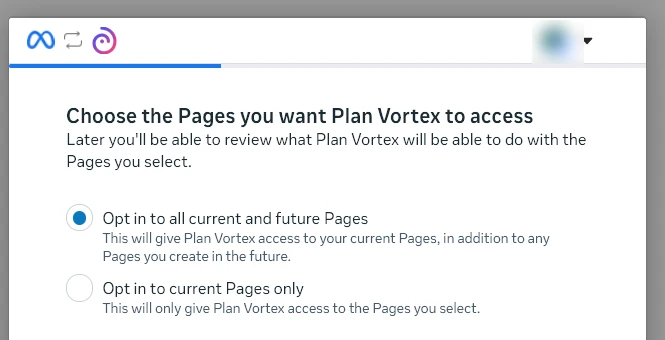
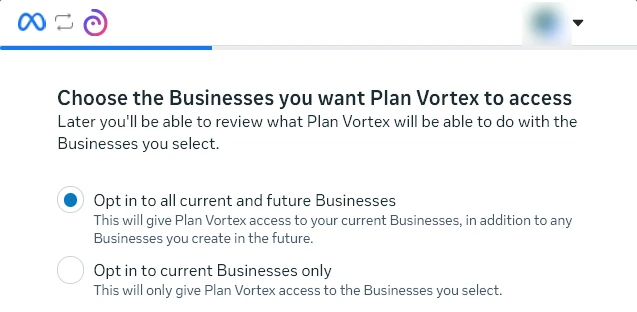
Screenshot from October 27, 2026 Next, Meta shows three screens just like the Pages one, about your Businesses (business portfolios), your Commerce accounts and your Instagram accounts. It does not ask you to create any: it asks which of the ones you already have PlanVortex can access, and the option selected by default works. Businesses and Commerce accounts are used for product catalogs. Instagram accounts are not connected from here, because Instagram has its own button in Connect.
Screenshot from October 27, 2026 The last screen, Review Plan Vortex's access request, sums up what PlanVortex will be able to do. Click Save.
Back in PlanVortex, tick the Pages you want to connect and click Add.
What happens if you do not have access to the Page?
The Page does not show up. If the authorization ends without any Page, PlanVortex tells you when you come back, with the message "It seems we couldn't find any Meta accounts", and links this guide. The same happens if you chose current Pages only on Meta's screen and did not tick any. Get the access and connect again from the start.
With incomplete task access, the Page connects and what fails is whatever depends on the missing task: without Insights the stats do not arrive, and without Messages and Community Activity you cannot reply to messages or comments from PlanVortex.
Sources
- Pages API: overview, Meta for Developers. Checked on October 23, 2026.
- Page Feed, Graph API reference, Meta for Developers. Checked on October 23, 2026.
- User Feed, Graph API reference, Meta for Developers. Checked on October 23, 2026.
- User Scores, Graph API reference, with the removal of publish_actions. Meta for Developers. Checked on October 23, 2026.
- About Facebook Page access, Facebook Help Center. Checked on October 23, 2026.
- See your Facebook Page role or access, Facebook Help Center. Checked on October 23, 2026.
- Create a Facebook Page, Facebook Help Center. Checked on October 23, 2026.
- How do I edit the privacy and settings for my business integrations or remove them from Facebook?, Facebook Help Center. Checked on October 23, 2026.
- Add people to a business portfolio and assign a business asset, Meta Business Help Center. Checked on October 23, 2026.
Can I connect my personal Facebook profile to PlanVortex?
No. Meta does not let any app publish to a personal profile: on April 24, 2018 it removed publish_actions, the permission that made it possible, and its API does not allow creating posts on a user's feed. What you can connect is a Page. If you publish from your profile today, create a Page for the brand (you manage it with the same Facebook account) and connect that one.
My profile has professional mode turned on. Does that work?
No. Professional mode is a setting on your profile and does not turn it into a Page: the Facebook Help Center explicitly tells the two apart. To connect Facebook to PlanVortex you need a Page.
Do I need full control of the Page?
No. With Facebook access and partial control you can publish, reply to messages and comments, and see insights, which is everything PlanVortex does with a Page. Full control adds the Page settings and managing who has access, and PlanVortex touches neither. If what you have is task access, it has to include Content, Messages and Community Activity, and Insights.
Do I need a business portfolio (formerly Business Manager)?
Not to connect the Page: what matters is that your Facebook account has access to it. When you connect, Meta asks which Businesses PlanVortex can access, but it does not ask you to create one: you choose among the ones you already have, and if you have none, that is fine. If the Page is already in a business portfolio, access to it is assigned by someone with full control of the portfolio, from the Meta Business Suite settings.
I connected Facebook and one of my Pages is missing. How do I add it?
If you created it after connecting, connect Facebook again from PlanVortex, which reads the list of Pages every time you connect. If it already existed, you most likely chose current Pages only when you authorized and did not tick it. On Facebook, go to Settings & privacy, then Settings and Business Integrations, and click View and Edit next to PlanVortex (Meta spells it Plan Vortex). Tick the Page, save, and connect Facebook again from PlanVortex so it shows up in the list.